ePOS Printers
The proxy must be online and the IP Address of the proxy PC must the the same as the IP set in ClickPOS for Master/Slave configuration.
Configured ePOS printers provide diagnostics information via the proxy dashboard.
IThe dashboard will indicate if the printer is Ready or Offline.
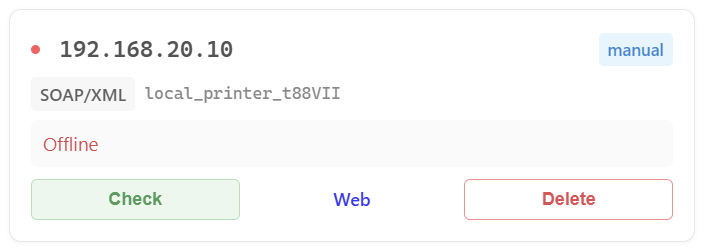
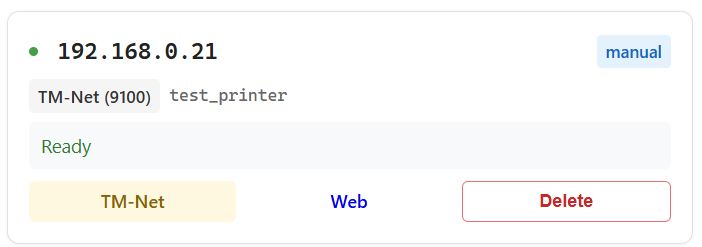
If you are unable to determine the issue. Restart the proxy (right click tray icon and click restart service). Do another test print. Then proceed to https://localhost/logs , tick pretty-print. Copy to notepad, save and send to help@clickpos.com for analysis. Or call +61 3 90925300 option 2 for assistance.
OPOS Printers
- Direct Print
Direct print method doesn't require any configuration in the proxy dashboard.
Ensure the proxy is running and the ClickPOS Bridge Chrome Extension is active in your browser.
As a rule of thumb, OPOS itself shoud be checked by doing a check health on the device.
- Proxy Configured
Similar to the above, OPOS must be working and the printer must respond to health checks.
The proxy must be online and the IP Address of the proxy PC must the the same as the IP set in ClickPOS for Master/Slave configuration.
If you are unable to determine the issue in any case.
Proceed to https://localhost/logs , tick pretty-print. Copy to notepad, save and send to help@clickpos.com for analysis. Or call +61 3 90925300 option 2 for assistance.